S3 Vectors
Overview
AWS S3 Vectors allows you to perform semantic and similarity search over vector embeddings stored within S3 vector buckets. The vector “rows” have fields for the key, the vector embedding array (“data”), and metadata. The meta data is a JSON object with, as of July 2025, up to 10 root level fields. Those fields can store numbers, strings, booleans, inner objects and lists.
Semantic Use Case
One of the primary use cases is semantic search filtering to find vectors that match both similarity criteria and business-specific metadata attributes. Qarbine can then perform calculations on the matches and format the results for publication quality and interactive web page content.
In this tutorial we are going to use a movies data set which contains embedding values based on the movie plot. The structure of the objects based on the metadata is shown below.
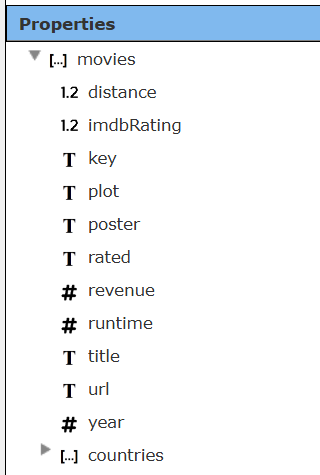
The countries field contains a list of countries. S3 Vectors can handle much more complex metadata and Qarbine can process most any JSON shape - even dynamic ones.
The processing sequence for this use case is:
- prompt the user for a phrase and minimum IMDB rating score
- dynamically obtain the vector for the phrase
- run a S3 Vectors query with that vector and a filter using the IMDB rating
- format an analysis using a Qarbine template containing formulas, formatting definitions, and diverse presentation options
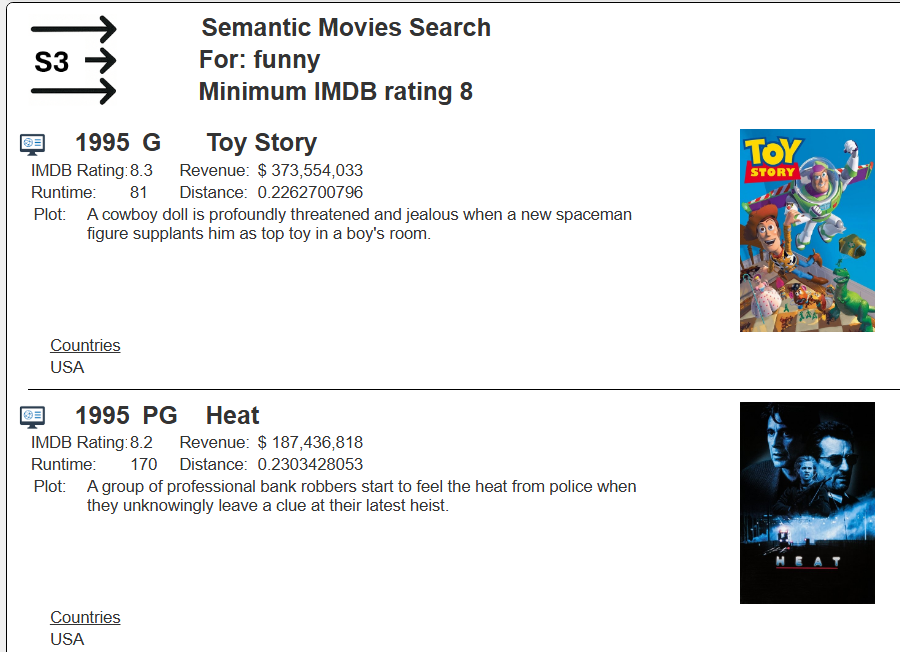
Sample output snippet is shown below.
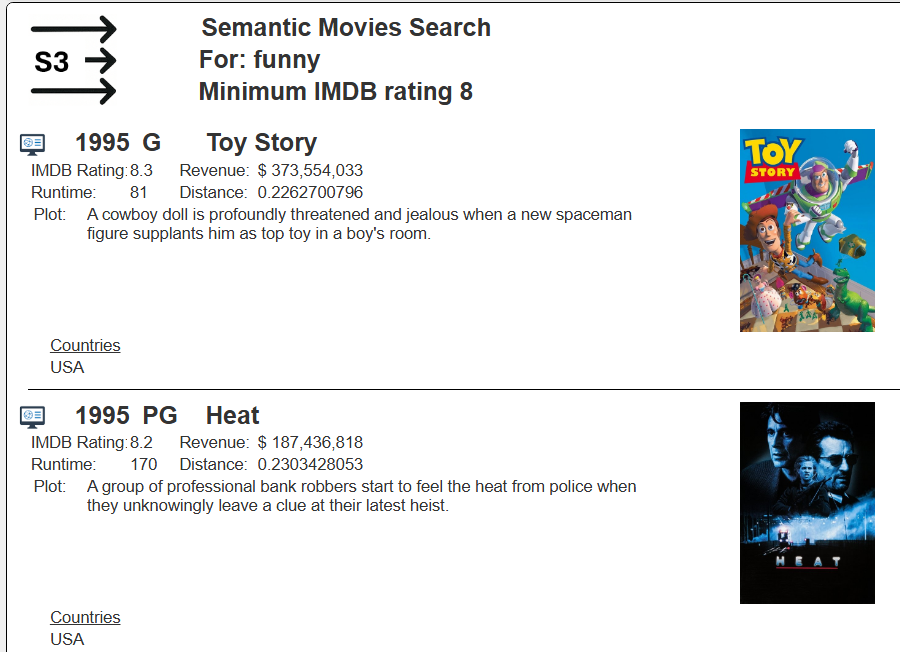
Clicking the highlighted button opens a web browser on the IMDB web site.

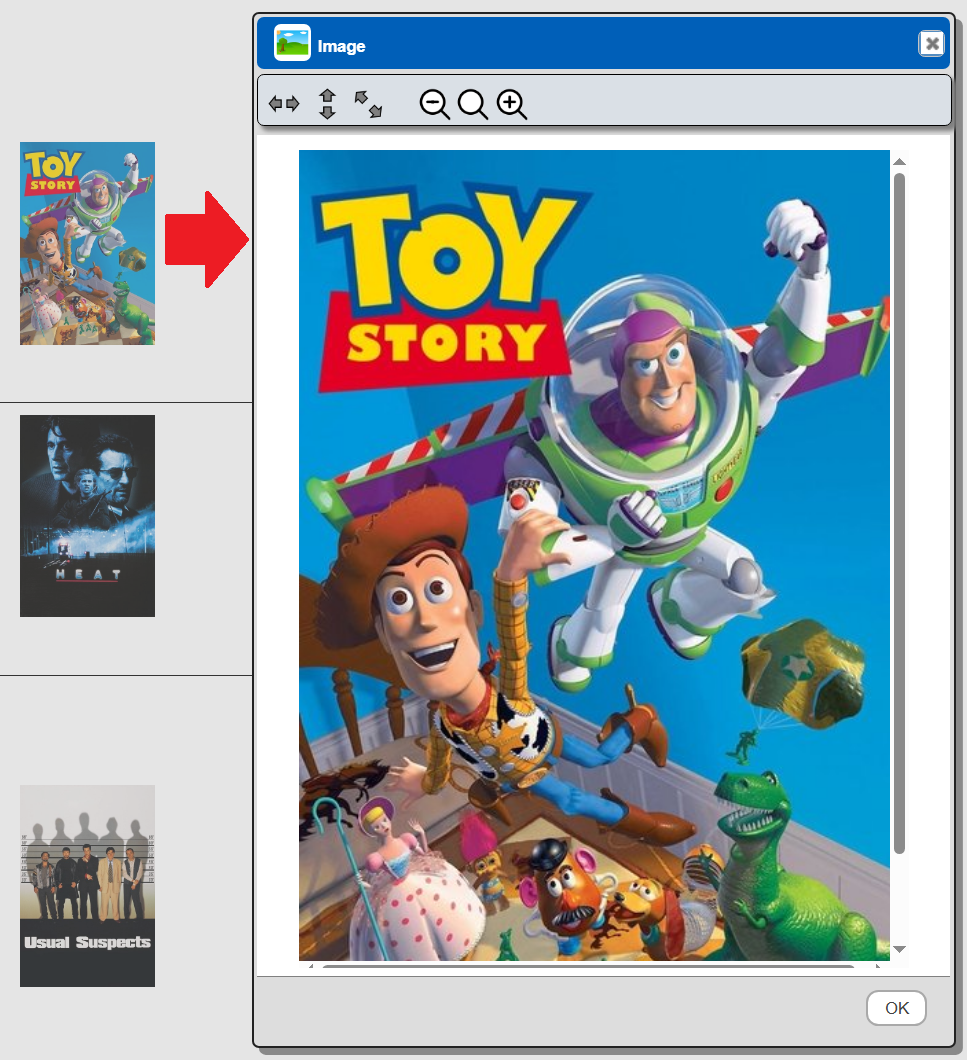
Clicking on a poster image opens up an image viewer.
Multimedia Content
Besides text, numbers, dates, and lists, Qarbine also supports images, audio, and video multimedia content which can be presented as part of the generated analysis. In this manner multi-modal and multi-model search retrievals and analytics can easily be created.
To view the available custom cells in the Template Designer choose the drop down option below on the right side of the page.
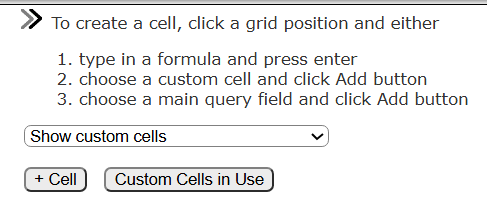
Below are some relevant custom cells:
For images use

Its primary properties are shown below.

For video and audio links use

Its primary properties are shown below.
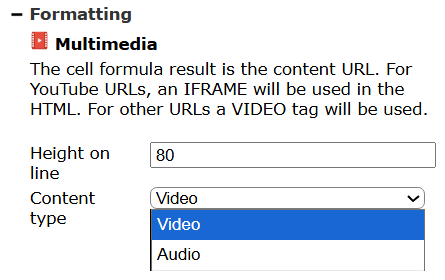
For URL hyperlinks use

Its primary properties are shown below.
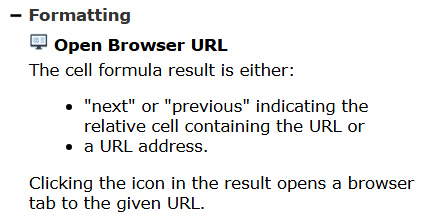
Defining a Data Source
Overview
A Data Source is a Qarbine component responsible for retrieving data from somewhere. At a high level it has a name, a description and some arbitrary query string which when sent to the associated Qarbine Data Service endpoint returns some data. The overall execution flow for an analysis, including the optional prompt component, is shown below.

A single data source can be referenced by name from multiple Qarbine template components. This enables a single point of change when perhaps, an index is added, or some other query tweak is necessary. The alternative is to attempt to find all templates impacted by a schema or index change for example. The component reusability is especially beneficial when team members have varying roles and skills.
Query Specification
The Qarbine query specifications can use variable references and macro functions to build out the effective final query. In our use case there will be variables for the user phrase and the IMDB rating. As noted in the S3 Query guide, you can use a JSON object or Qarbine’s S3VectorsSQL interface to query S3 Vectors.
For our example, the JSON form of the query specification is
#pragma pullFieldsUp metadata
{
    "vectorBucketName": "media-entertainment",
    "indexName": "movies",
    "filter": { "imdbRating": { "$gte": @imdbRating  } },
    "nearText":  @userPhrase
    "useAssistant": "myOpenAI",
    "returnMetadata": true,
    "returnDistance": true,
    "topK": 10,
}
The pragma line will pull all of the fields in the metadata up a level to be root level fields. The “myOpenAI” string references a Qarbine AI Assistant setup by the Qarbine administrator to interact with Open AI to obtain a vector embedding at runtime. That embedding is then used as the queryVector value for the call to S3 Vectors.
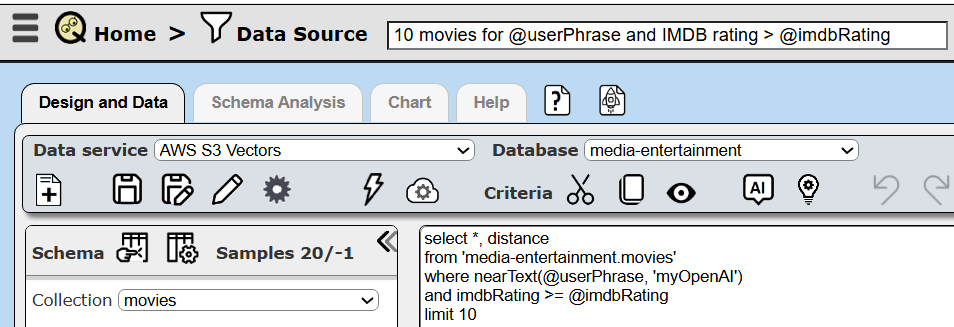
The Qarbine S3VectorsSQL equivalent is
select *, distance
from 'media-entertainment.movies'
where nearText(@userPhrase, 'myOpenAI')
and imdbRating >= @imdbRating
limit 10
At runtime the SQL syntax version is translated into the JSON object version which is then sent to S3 Vectors for processing.
Testing the Query Specification
Running the Data Source at this point presents a dialog for the 2 recognized runtime variables.
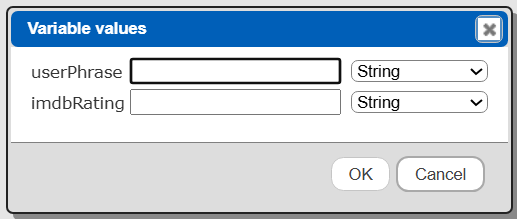
Enter values and adjust the datatypes in the drop down.
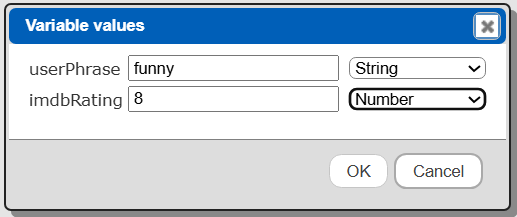
Click

A portion of the answer set is shown below.
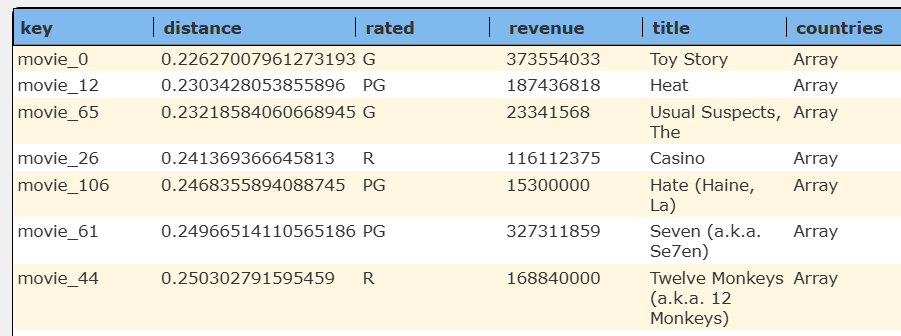
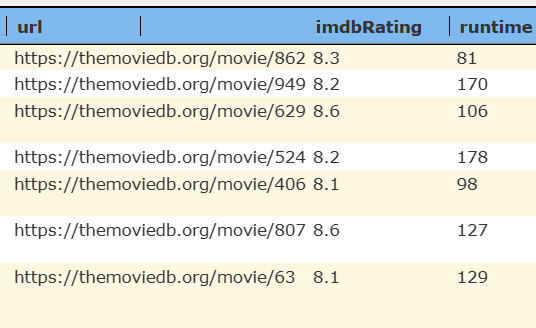
This data source can be found at “example/AWS/S3 Vectors/10 movies for @userPhrase and IMDB rating > @imdbRating”.
General S3 Vectors Querying
For database specific interaction guides navigate to
Prompt Integration
Overview
Qarbine prompts provide a way to obtain runtime values and variables for data source and template execution. To avoid hardcoding, prompts can use macro formulas to run queries which populate list widgets. Prompts are defined in a no code manner using the Prompt Designer. Shown below is the execution flow when there is a Prompt component.

The Prompt Designer supports a large variety of input widgets including entry fields, check boxes, radio button groups, sliders, and file input.
Example
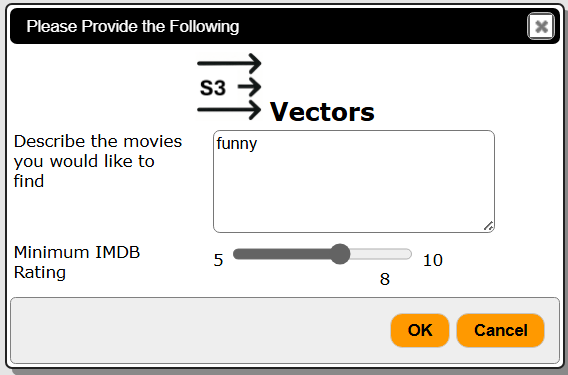
Prompts can include formulas which can populate selection lists. For our use case the following prompt is defined to obtain the user phrase and minimum IMDB rating.
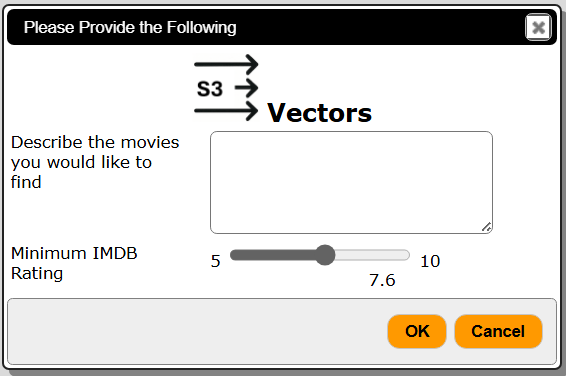
When ruins obtains the user phrase and minimum IMDB rating from the user and stores the values in the variables @userPhrase and @imdbRating respectively.
This example can be found at “example/AWS/S3 Vectors/Prompt for @userPhrase and @imdbRating”.
This prompt has 3 elements as shown below.
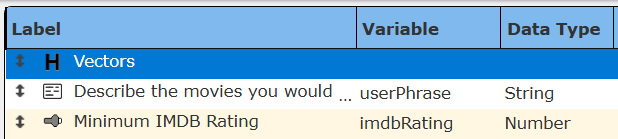
The first one is defined as
The second element is defined as shown below.


Notice the variable name matches that in the data source.
The third element is defined as shown below.


Notice the variable name matches that in the data source.
This prompt uses a style resource. To view it click on  and then click onthe tab

to see

Running the prompt presents the dialog shown above in this section.
Defining an Analysis Template
Overview
A template defines how to process the data being retrieved from Data Source queries and other data expressions. It also defines formulas, formatting options, and other analysis and presentation options. Team members can define templates which can be easily discovered by others for their running or to use as a starting point for other templates. The overall execution flow for an analysis, including the optional prompt component, is shown below

Example
Sample template output is shown again below.
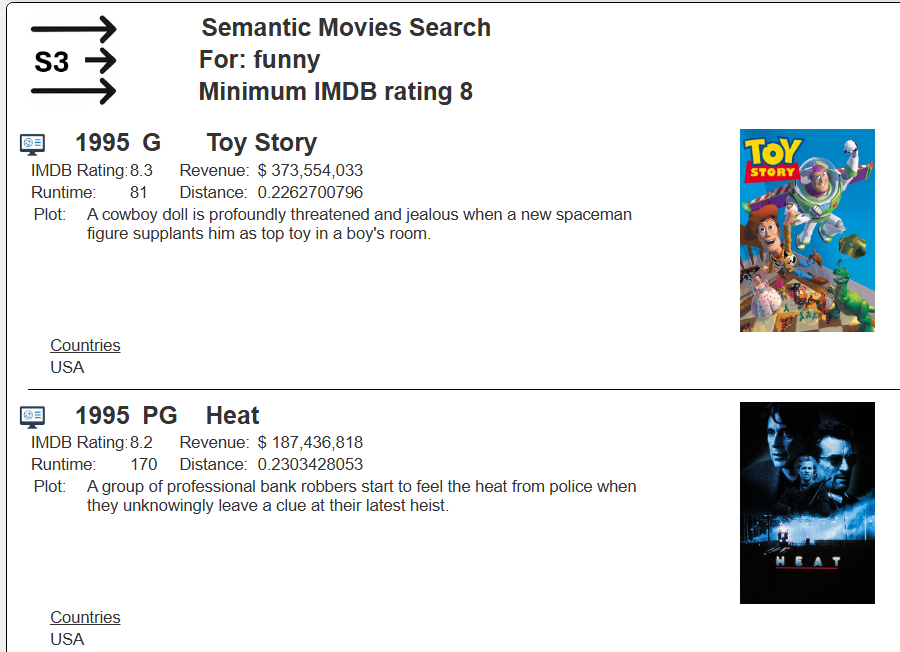
This example can be found at “example/AWS/S3 Vectors/10 movies for @userPhrase and minimum @imdbRating”.
For each matching similar row the year, rated, title and poster are shown along with other first level information. These are on a group header because the countries field is a list which is iterated through in an inner body section. So there is an outer list of movies and then for each movie a list of countries.
How It’s Built
The main data retrieval references the data source described above.
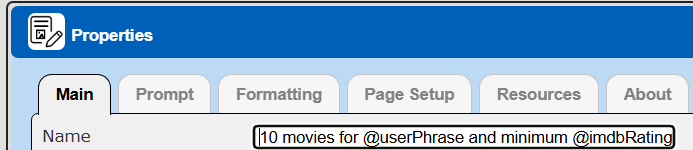


Qarbine will assign the variable “main” to the movie as the answer set is iterated through. Setting variables when there are multiple lists being iterated through is a best practice.
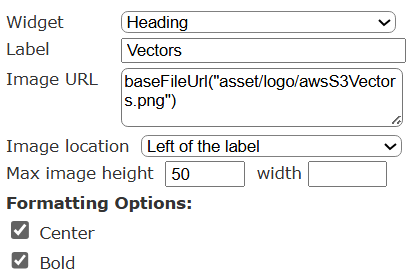
The report header section provides an S3 Vectors image along with feedback on the search criteria.

The image formula is
baseFileUrl("asset/logo/awsS3Vectors.png")
The group header emits the primary movie information.

The general formula pattern is
@main.fieldName
The first line has these cells.
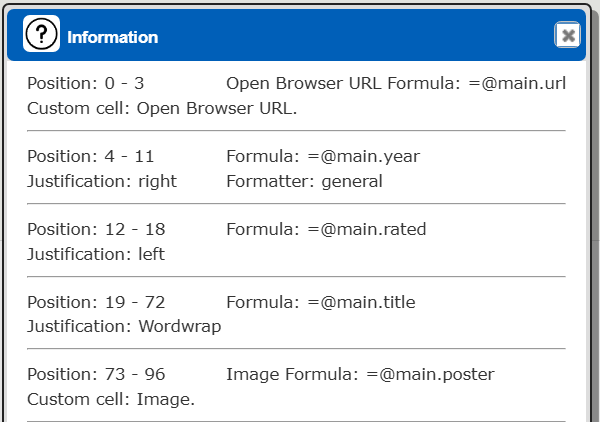
The second has these cells.
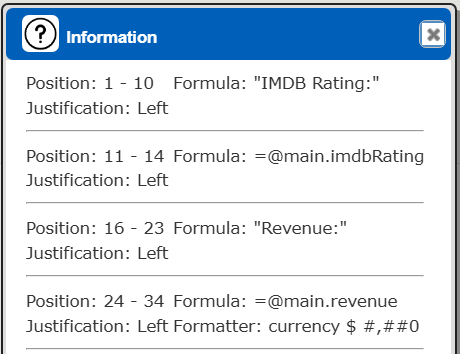
The third line has these cells.
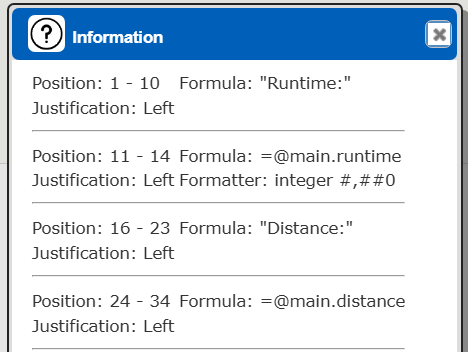
The country list is iterated through via the group’s data retrieval option. Right click on

and choose

to see the group’s properties.
The inner data is obtained using a formula that retrieves the countries field value from the main variable (the movie).


The last line of the group header has the “Countries” heading label.
The body section will be iterated through for each element in the countries list.

Each country is emitted simply by referencing the variable.
There is a horizontal divider to visually separate each movie.
Other Component Summary
Prompt
Data Source
Generated Result
References
A general overview of S3 Vectors can be found at https://docs.aws.amazon.com/AmazonS3/latest/userguide/s3-vectors.html and limitation information can be found at https://docs.aws.amazon.com/AmazonS3/latest/userguide/s3-vectors-limitations.html.